Enhance Reporting with E-Signatures and CSS Customization

Introduction
Bold Reports® 6.3.24 unveils an electronic signature report item and flexible styling via external CSS files to enhance efficiency and customization in your reporting. For more details on this update, including Report Server and Report Viewer enhancements, refer to our release notes. This blog highlights the key features of the Signature report item and CSS styling support.
How can electronic signatures transform your reports?
The Signature report item in Bold Reports enables users to draw, edit, and crop signatures in both the Report Designer and Report Viewer. This feature supports customizable stroke color and width, plus options to directly export signed reports from the Viewer or via scheduled tasks.
Key features
Draw, edit, and crop signatures: Easily create and refine drawn signatures that add a personal and professional touch to your reports.
Customize their appearance: Adjust the stroke color and width to align with preferences or branding requirements.
Seamlessly export them: Export signed documents directly from the Viewer or through scheduled tasks to streamline your business workflows.
Integrate e-signatures in Report Designer and Report Viewer: Access this tool in both the Designer and Viewer for consistent functionality across report creation and viewing.
How the Signature report item works
In Report Designer
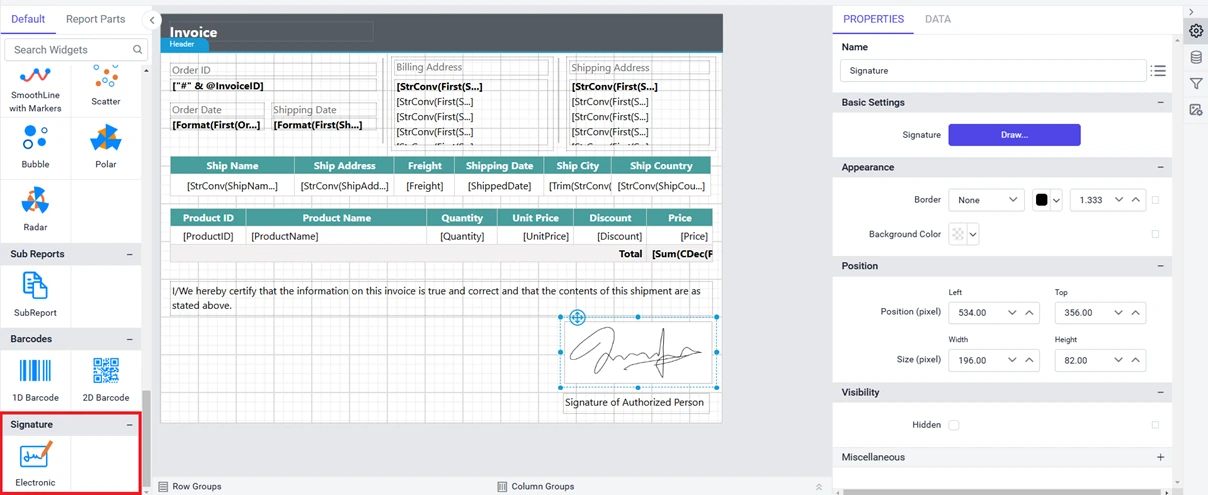
Draw and edit: Navigate to the Signature section in the report item panel and then select Electronic to draw, edit, and customize your signature in the Properties panel.
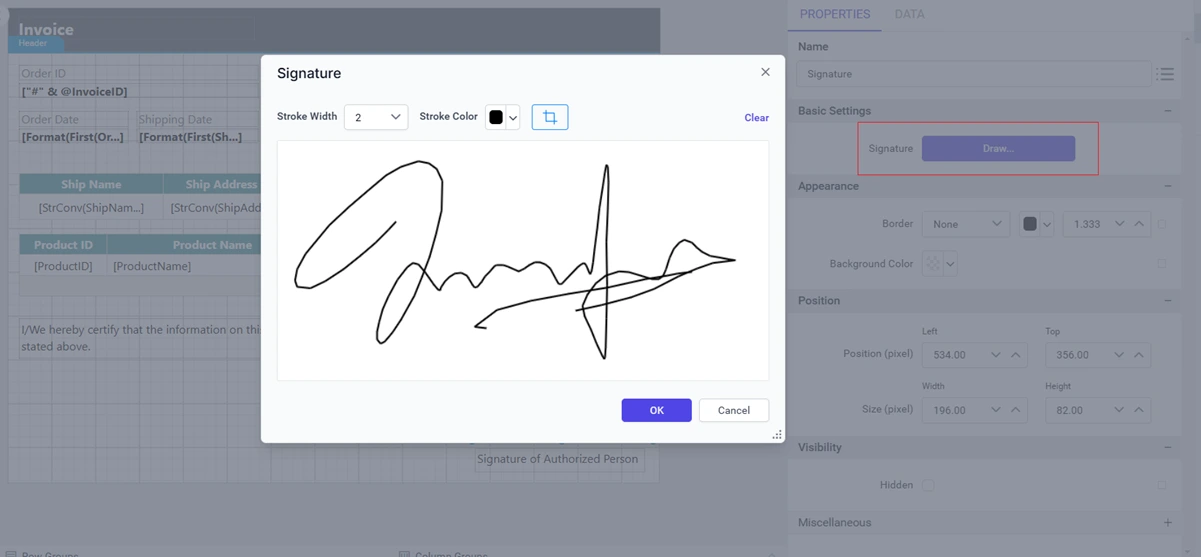
Customize: Click Draw to draw your signature and adjust the stroke width and color to ensure your signature looks exactly how you want it.
Position: Precisely place your signature within your report.
In Report Viewer
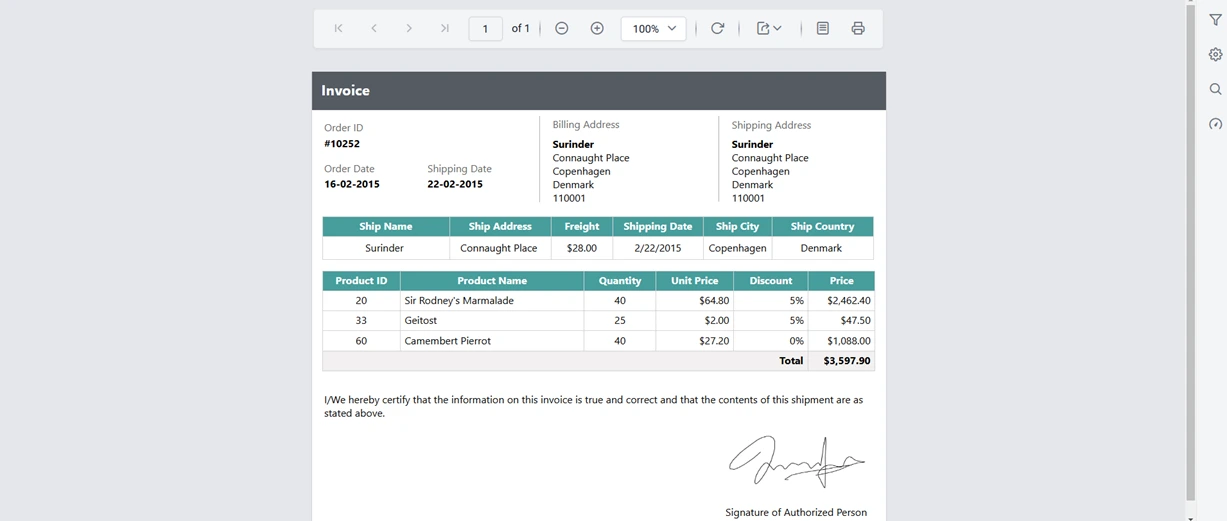
Viewing and exporting: After incorporating an electronic signature into a report, view and export the reports in various formats, including PDF, with ease.
Note: The electronic signatures are used to visually represent a person’s signature on a report. However, these signatures do not include cryptographic security, which means they are not legally binding by themselves. These signatures are best for adding a personal touch or showing informal approval, but not for official legal documentation.
Customizing report item styles using external CSS
External CSS support allows full customization of report item styles, expanding beyond the built-in styling options.
Custom style sheet example
Users can define styles for elements like tables and text boxes. Here’s a sample styling file that customizes a table header and text header:
"table header": {
    "font-family": "arial",
    "font-size": "13.333333333333334px",
    "font-weight": "bold",
    "background-color": "#6495ED",
    "border-bottom-color": "navy",
    "border-right-color": "gray",
    "border-left-color": "gray",
    "border-right-width": "1.333px",
    "border-left-width": "1.333px",
    "border-top-width": "2px",
    "border-bottom-width": "2px",
    "border-bottom-style": "double",
    "border-top-color": "navy"
  },
  "header": {
    "background-color": "#6495ED",
    "font-family": "arial",
    "font-size": "0.16666979166666665in",
    "font-style": "normal",
    "font-weight": "bold",
    "color": "white"
  }
How to configure custom styles from external CSS files
You can add external CSS files in a preconfigured or custom location.
How to add the external CSS in the preconfigured location
Create a folder named custom-styles at {installed location}\BoldServices\app_data\reporting\configuration.
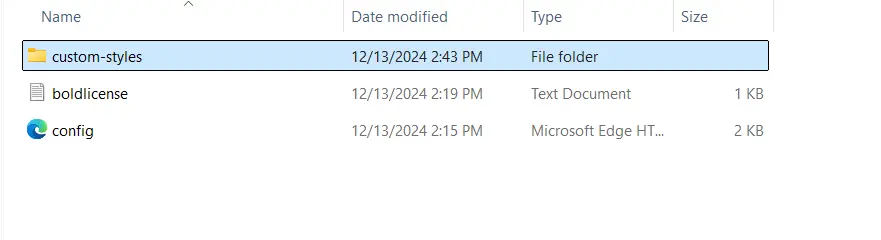
Add a JSON file named custom_style in the custom-styles folder.

Add modified style keys like those in the preceding sample to the custom_style file and then restart Bold Reports to make these styles available in Report Designer.
The custom style keys are available in the designer UI through the Custom Style dropdown menu in the Miscellaneous section of the Properties panel.
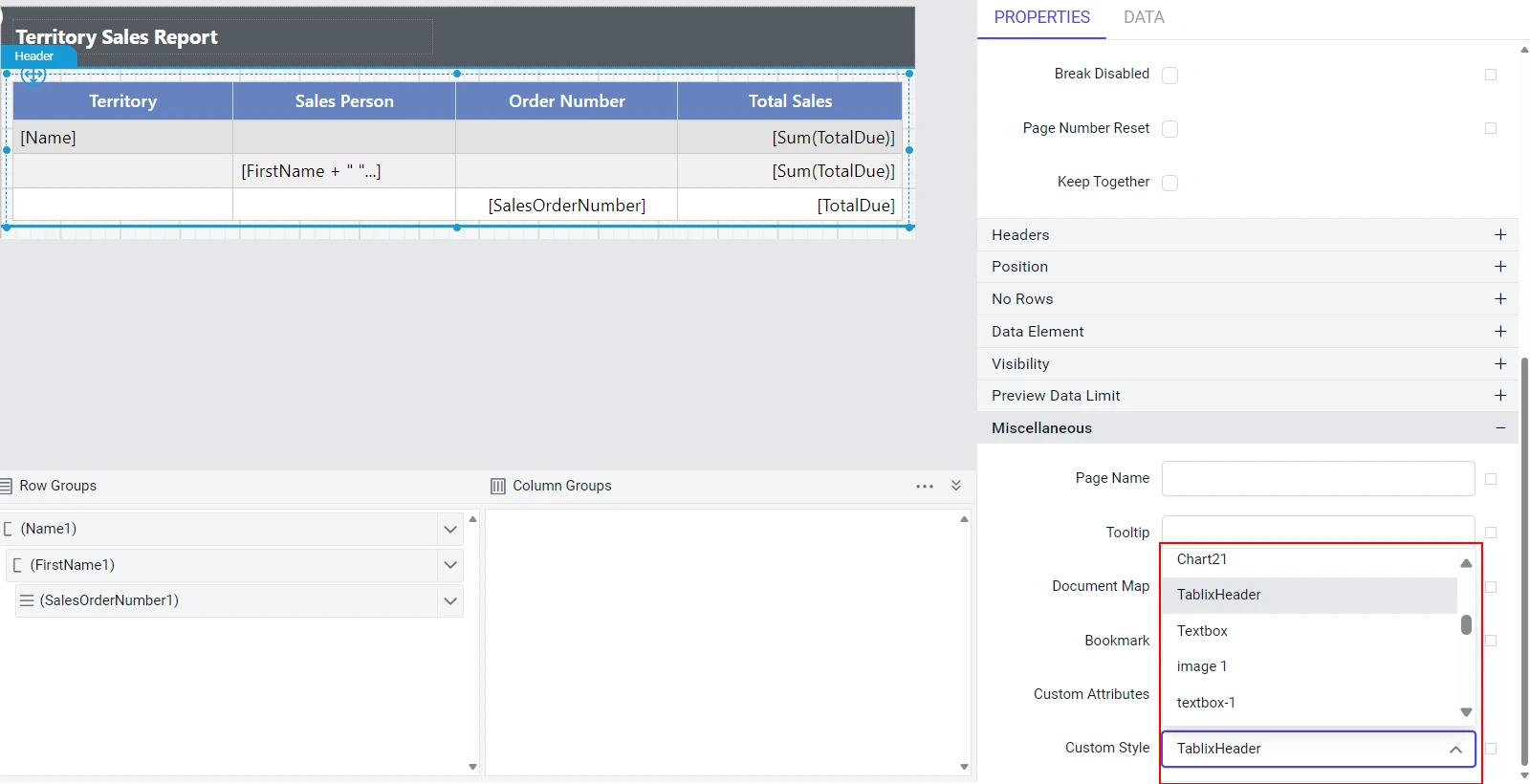
Choose from the available style keys in the Custom Style dropdown.
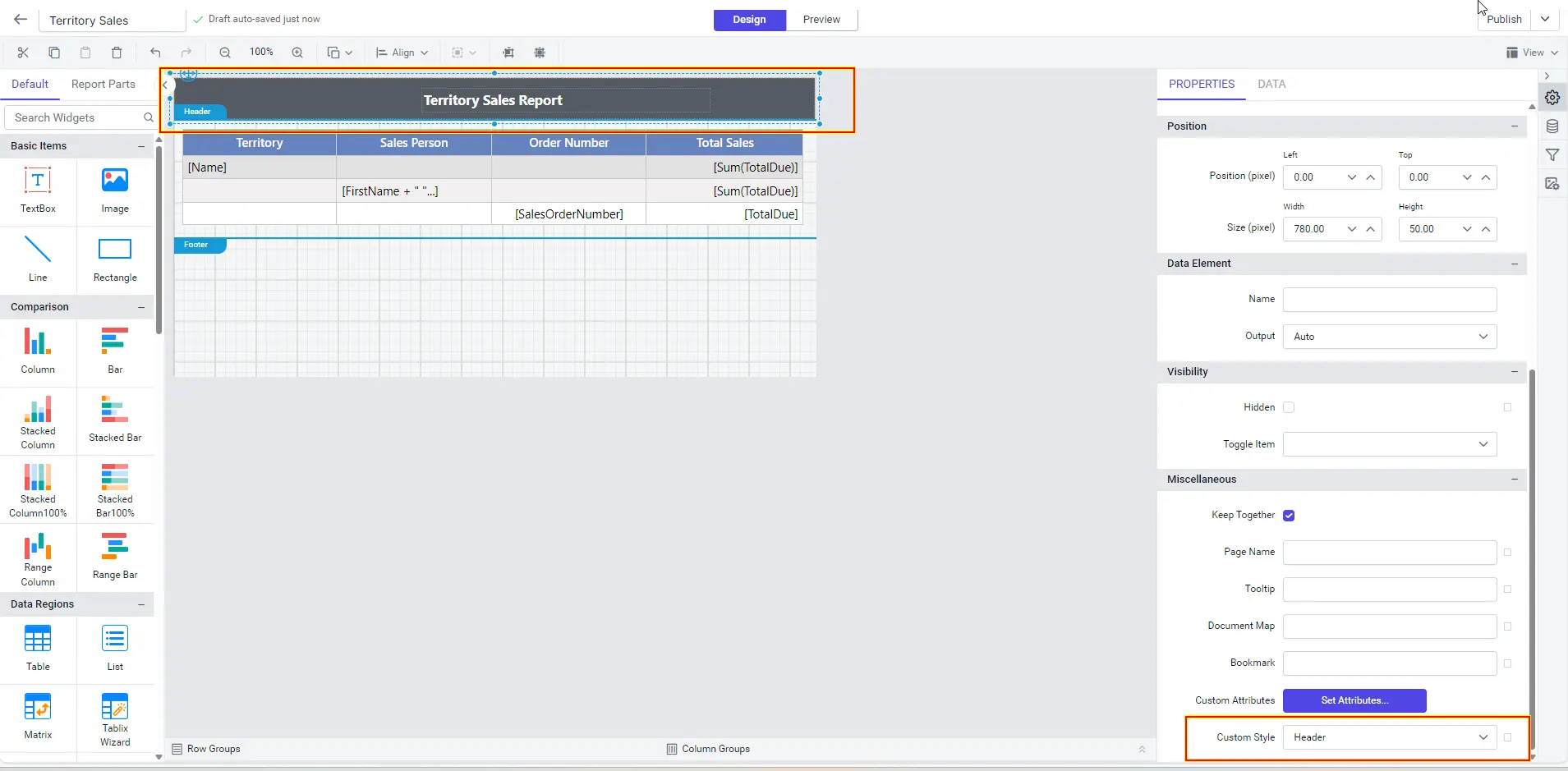
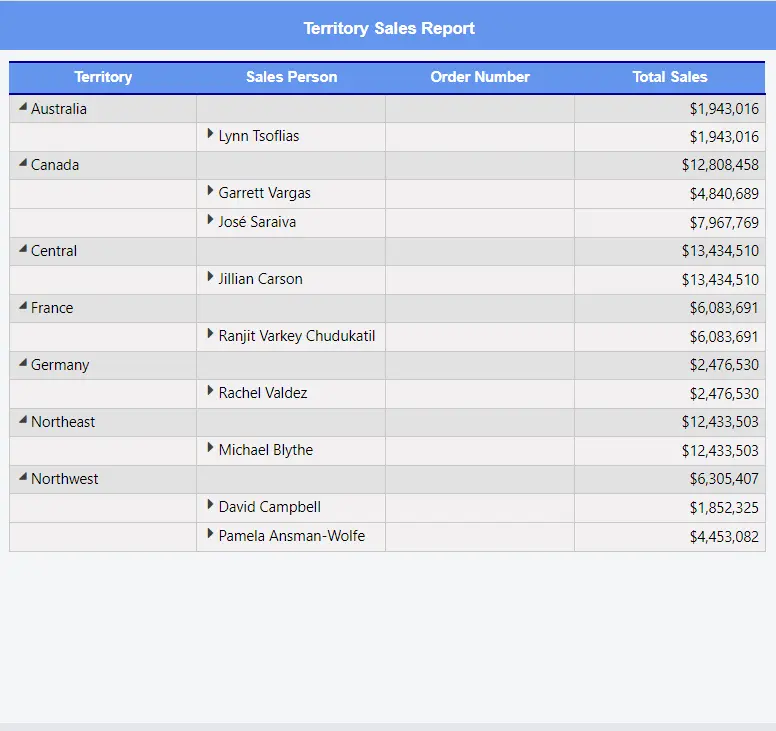
In the following images, you can see the results of applying the custom styles header and table header from the previous sample CSS to the report.
How to add the external CSS in a custom location
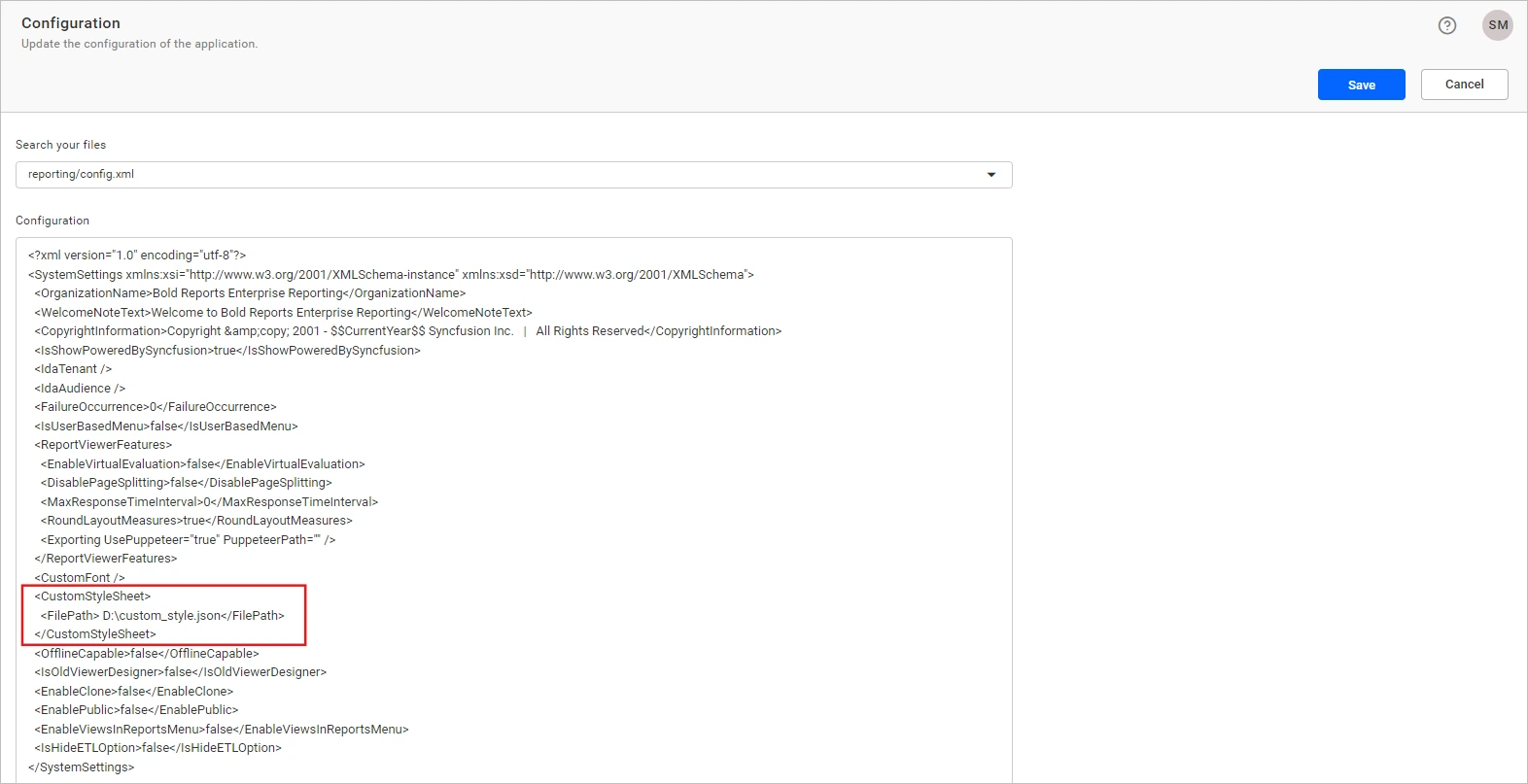
Add a reference to the custom-style JSON file in the Configuration settings of Report Designer. Use the following format:
<CustomStyleSheet>
<FilePath>{path-to-your-custom-style-JSON-file} </FilePath>
</CustomStyleSheet>
Replace {path-to-your-custom-style-JSON-file} with the path where your custom-style JSON file is located. After adding the JSON file reference, click Save. This updated configuration will load the custom styles from the specified JSON file.
Conclusion
The Bold Reports® 6.3.24 update introduces two dynamic enhancements that improve both functionality and flexibility and are only the beginning of more personalized and efficient report generation: the electronic signature report item and external CSS support. Explore these features today to unlock further potential in your reporting workflows.
If you have any questions, please post them in the comments section. You can also contact us through our contact page, or if you already have an account, you can log in to submit your question.
Bold Reports offers a 30-day free trial that does not require any credit card information. We invite you to start a free trial and experience Bold Reports for yourself. Be sure to let us know what you think!


