How to Localize a Report Designer UI in Bold Reports Server

TL; DR: Struggling to build reports when the Report Designer UI isn’t in your team’s language? Bold Reports® supports multilingual Report Designer UI language localization to reduce navigation confusion, prevent configuration mistakes, and cut internal back-and-forth during report creation. Read this blog to learn why Designer UI language support matters for global teams and how to enable it using locale files.
Introduction
When report designers work across regions, an English-only UI often leads to configuration errors, onboarding delays, and constant dependency on BI teams. Designers misread parameter settings, struggle with filters, and repeatedly ask for navigation help, slowing down delivery and increasing reworking. This friction doesn’t just affect productivity. It forces BI developers to spend time explaining UI actions instead of improving datasets, security, and report performance.
That’s why localization matters. It allows global teams to design and configure reports in the language they work in every day, reducing mistakes and speeding up report creation.
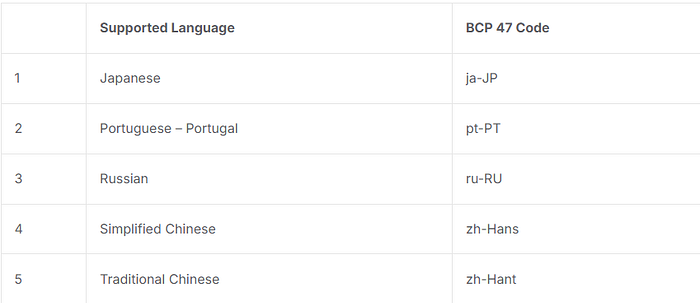
Bold Reports supports UI language localization in its Report Server using locale files. It newly includes support for Japanese, Portuguese, Russian, simplified Chinese, and traditional Chinese. Teams can use this language support to scale reporting across regions without costly workarounds.
Challenges of non-localized reporting
The following are some of the challenges report designers and developers face due to lack of report localization:
Parameter setup becomes error-prone: Designers often select the wrong parameter settings (like multivalue, null handling, or prompt behavior) because those configuration labels aren’t intuitive in a non-native UI language.
Basic navigation turns into daily back-and-forth: BI developers and leads repeatedly get pinged with “where is this option?” questions for actions like opening the properties panel, switching to the data tab, or finding specific formatting menus.
Filters and sorting get applied incorrectly: Designers misinterpret UI terms tied to grouping, sorting order, and filtering operators, which leads to reports showing the right data model but the wrong business view.
Workflows slow down: Designers hesitate or pick incorrect export formats and settings because UI actions like export, print, page setup, or download options are unclear.
Report creation requires costly workarounds: Team leads end up recording step-by-step videos in their language to guide designers who don’t understand English, or they hire bilingual report designers to build and maintain reports for non-English customers, which increases delivery cost.
These challenges highlight why a report designer’s language support is not just a convenience but a necessity for global teams.
Why multilingual UI support matters for global teams
Report designers and BI developers need a Report Designer UI that they can navigate in their preferred language. Here’s why it matters for report designers and BI developers.
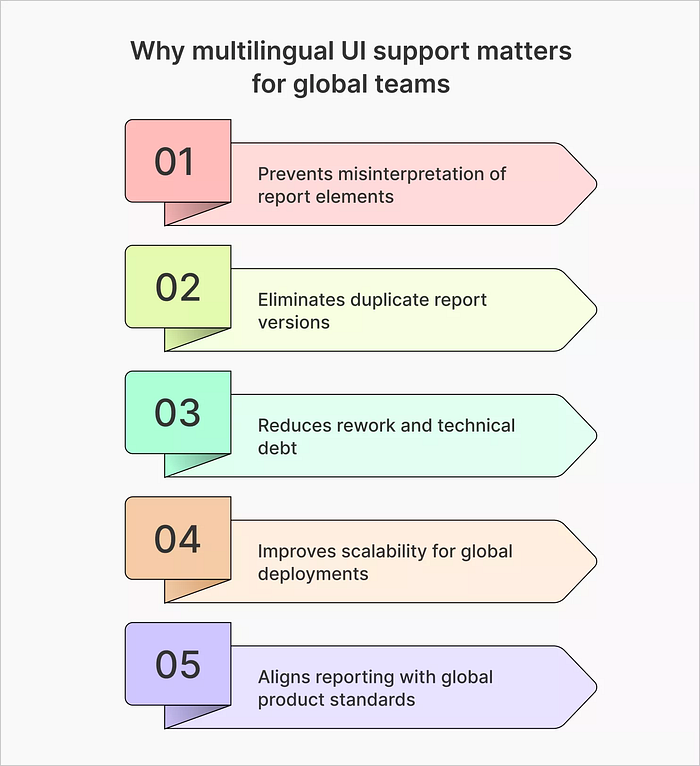
Prevents misinterpretation of report elements: Multilingual UI support ensures that labels, filters, and tooltips appear in the user’s preferred language, thereby reducing confusion and follow-up requests.
Eliminates duplicate report versions: UI localization allows designers and developers to use a single report template that adapts dynamically based on locale, hence reducing redundancy.
Reduces rework and technical debt: Externalizing UI text simplifies updates, minimizes regression issues, and lowers long-term technical debt in report design and development.
Improves scalability for global deployments: Reports can be deployed immediately without redesigning or restructuring across global environments, which allows developers to scale reporting solutions efficiently.
Aligns reporting with global product standards: Multilingual UI support helps reports meet international usability, accessibility, and compliance expectations, making them suitable for enterprises.
These benefits make multilingual UI language a smart step toward global usability.
How to Localize a Report Designer UI in Bold Reports Server
UI localization in Bold Reports Server goes beyond translation by adapting the Report Designer UI language to different cultural contexts for a more natural experience. In Bold Reports Server, English (en-US) is the default, and localized strings are stored in separate locale files that load automatically based on the UI culture setting.
How to add new UI localization in Bold Reports Server
Step 1. Open the localization GitHub repository, to download the required culture file and add it to the Report Server application.
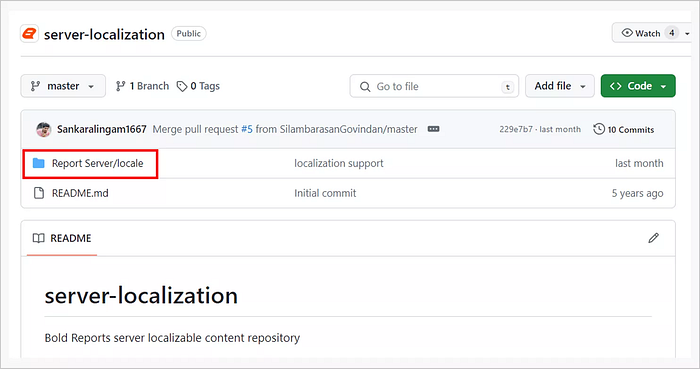
Open the Bold Reports Server
Step 2. Click on the Report Server/locale folder to access the available localization support.
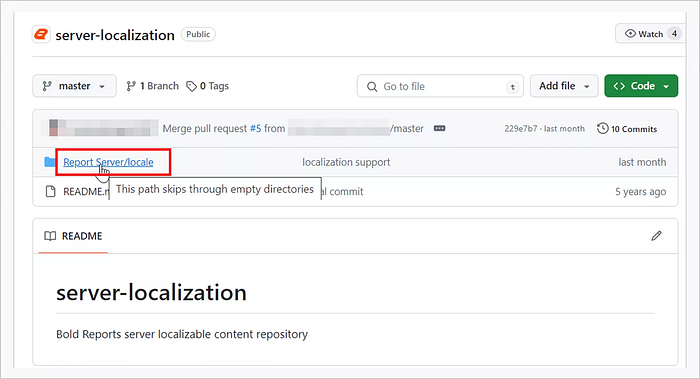
Navigate to the locale folder in the Bold Reports Server
Once you click it, the codes for the available languages will appear, as shown in the following image.
Press enter or click to view image in full size
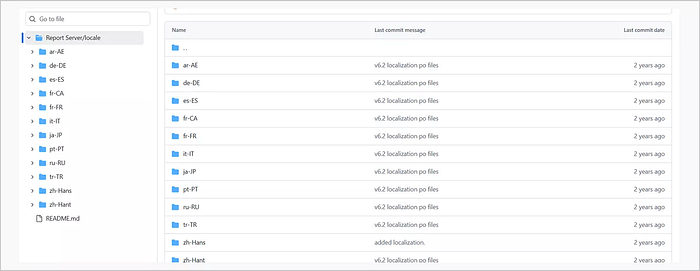
View available languages in the Bold Reports Server
Note: In this case, the five newly supported languages in our Report Designer are listed in the table below with their respective codes.
Step 3. Click on the language code you require.
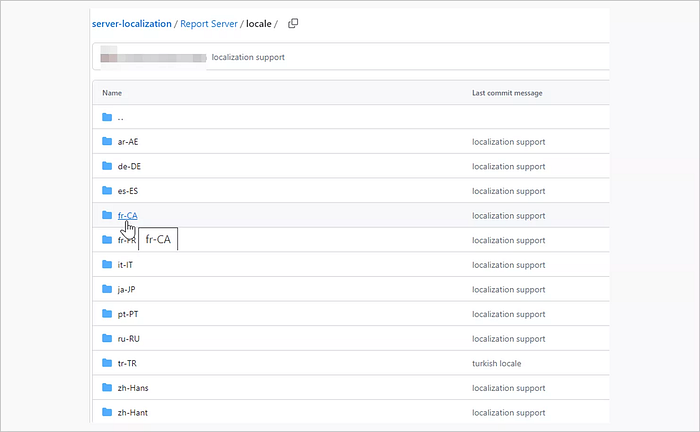
Click on the language code for your preferred language
Step 4. Once the language code opens, click on the displayed messages.Po file to download it.

Click the download icon to get localization files
Step 5. Go to the file explorer to find the file.
Step 6. Right-click on the file to copy it. Then go to This PC. Click Local Disk C > BoldServices \> reporting \> locale, as shown in the following image, to enable localization.
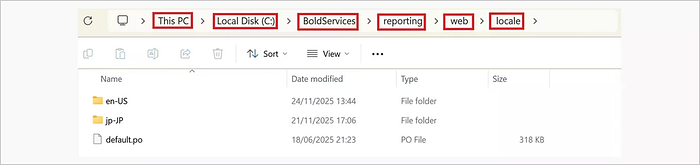
How to enable localization
Step 7. Once in the locale folder, right- click to create a new folder and rename it in this format {language code}- {country code}, for example ja-JP or pt-PT, depending on your chosen language. Then, paste the copied messages.Po file inside the newly created folder.
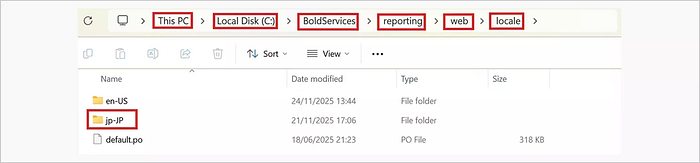
Create a locale folder using the correct language code format
Step 8. Go to Bold Reports. Navigate to site then to settings and refresh the site to apply the localization changes. Then choose your language from the dropdown menu. For this demo, I will select Japanese.
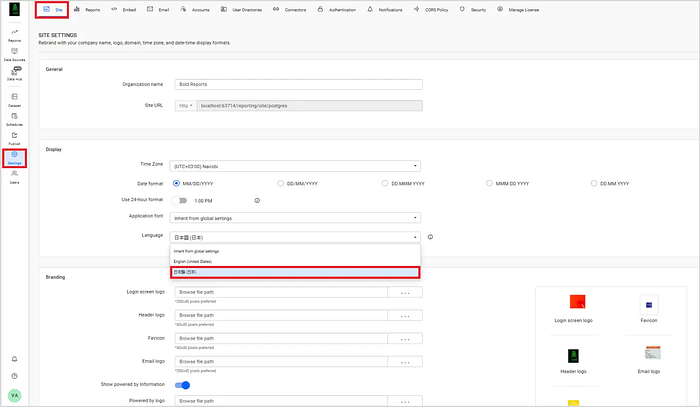
Language selection in site settings
Final output: The Bold Reports Designer UI will appear fully translated into your desired language, allowing you to design and configure reports comfortably. For example, when Japanese is selected, the menus, toolbars, property panels, and system labels are all displayed in Japanese, as shown in the image below.
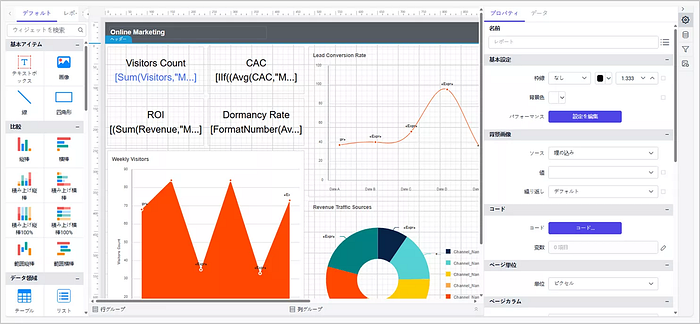
Report designer UI localized to Japanese
Note: UI localization does not translate the report data.
To learn more about localization in Bold Reports, refer to our documentation. To see how to change the language in the Report Viewer, check
Final thoughts
Multilingual UI support in Bold Reports® makes day-to-day report work easier for report designers and BI developers supporting non-English teams. Designers can configure parameters, filters, and formatting with fewer mistakes, while BI developers avoid acting as translators and can focus on data models, embedding, and governance. With locale-based UI switching for the Report Designer, you can support multiple regions from a single Bold Reports environment, without costly workarounds.
If you’re not yet a Bold Reports customer, start a free trial or request a demo to see how localization can reduce your team’s work and speed up report creation for global teams.
Frequently asked questions
1.Does Bold Reports support multiple UI languages?
Yes. Bold Reports lets you use the application interface in multiple languages instead of only English.
2. Which languages are supported in the Report Designer UI?
The Report Designer UI supports Japanese, Portuguese (Portugal), Russian, Simplified Chinese, and Traditional Chinese, along with English.
3. Can I change the UI language without reinstalling Bold Reports?
Yes. You just need to add the language files and refresh the site. No reinstall is needed.
4. Does changing the UI language translate report data?
No. It only changes the menus and labels. Report data must be translated separately.
5. Is language support available for both Report Designer and Report Server?
Yes. The language setting works for both the Report Designer and the Report Server.


